So, how do you actually make UX and UI designs that people don’t just use, but genuinely enjoy? It boils down to a few key principles: understanding your audience inside and out, making things incredibly easy to navigate, and adding those little touches that make an experience feel thoughtful and intuitive. It’s less about flashy trends and more about practical, user-centric problem-solving.
Before you even think about colours or button shapes, you need to get acquainted with the people you’re designing for. This isn’t a casual “they’re probably tech-savvy” kind of understanding. We’re talking about a deep dive into their motivations, their frustrations, their daily routines, and what they’re actually trying to achieve when they interact with your product or service.
Who Are They, Really?
Forget broad demographics for a moment. Think about their goals. What problem are they trying to solve? What outcome are they hoping for? Are they looking for quick efficiency, deep exploration, or perhaps emotional connection? Understanding these core desires will shape every subsequent design decision.
User Personas: More Than Just Pictures
User personas are your fictional representatives of your target audience. They should be rich with detail, not just names and ages, but also their pain points, their technical proficiency, their common tasks, and even their preferred communication styles. Imagine them as real people you’re designing for, not just a statistical average. This shift in perspective is crucial. A well-crafted persona can act as a constant reference point, helping you stay focused on delivering value to the actual people who will use your design.
Empathy Mapping: Stepping into Their Shoes
Empathy mapping is a collaborative visualisation to express what we know about a particular user type. It forces you to consider what your user might be thinking, feeling, saying, and doing in relation to your product. This process helps uncover hidden needs and potential frustrations that might not be immediately obvious from user research alone. It’s about truly trying to understand their emotional landscape.
What’s Their Context?
Where and when will they be using your design? Are they on a busy train, trying to quickly complete a task? Or are they at home, with time to explore and learn? The environment and circumstances heavily influence what makes a design usable and engaging.
Mobile vs. Desktop: A World of Difference
Designing for a tiny phone screen is a completely different ballgame to a large desktop monitor. Input methods, screen real estate, and user attention spans are all vastly different. A design that works beautifully on a tablet might be unusable on a smartphone, and vice versa. Prioritise mobile-first design where appropriate, as it forces you to be ruthless with your content and functionality, a discipline that often benefits desktop designs too.
Task Analysis: Deconstructing the Journey
Break down the core tasks your users need to perform. For each task, map out the steps involved. This exercise highlights potential roadblocks, unnecessary clicks, or confusing jargon. A smooth task completion often feels like a small victory to the user, and it’s your job to engineer those wins.
For those looking to deepen their understanding of the terminology and concepts essential to UX and UI design, a valuable resource can be found in the article titled “Web Design Vocabulary: A Comprehensive Guide to Key Terms and Concepts.” This piece provides an extensive overview of the language used in the field, making it an excellent companion for both beginners and seasoned professionals. You can read the article here: Web Design Vocabulary: A Comprehensive Guide to Key Terms and Concepts.
Navigation: The Art of Not Getting Lost
A user shouldn’t have to think about how to get around your website or app. Navigation should be intuitive, predictable, and readily accessible. Getting this wrong is a sure-fire way to frustrate your audience and send them looking elsewhere.
Clear Information Architecture
This is the backbone of your navigation. It’s about organizing content in a logical, hierarchical way that makes sense to your users. Think about how they would naturally categorize information and structure your site accordingly.
Card Sorting: Letting Users Decide
Card sorting is a fantastic method for understanding how users group information. You give them a set of “cards” representing different content items and ask them to group them in ways that make sense to them. This provides invaluable insights into how your users think and can dramatically improve your site’s structure.
Tree Testing: Validating Your Structure
Once you have a proposed information architecture, tree testing allows you to validate it. Users are given a task and asked to find specific information within your proposed sitemap. If they struggle, it indicates areas where your structure might be confusing.
Intuitive Menu Design
Your main navigation menu is the gateway to your content. It needs to be:
Consistent: Always the Same, Always There
Users shouldn’t have to hunt for your navigation. It should be consistently placed and styled throughout your entire experience. If it disappears or changes unpredictably, users will quickly become disoriented.
Concise: Less is More
Overly long or complex menus can be overwhelming. Aim for clear, concise labels that accurately reflect the content they lead to. If you have a lot of options, consider sub-menus or secondary navigation.
Discoverable: Easy to Find and Use
The primary navigation should be immediately obvious. Use standard placements (like the top of the page or a persistent sidebar) and clear visual cues like prominent buttons or links.
Search Functionality: The Safety Net
For larger sites or complex applications, a robust search function is essential. It acts as a vital backup for users who can’t find what they’re looking for through navigation alone.
Smart Search: Beyond Simple Keywords
Good search goes beyond just matching keywords. It should understand synonyms, handle typos, and offer intelligent suggestions as the user types. Consider providing filters and sorting options for search results to help users narrow down their choices.
Visual Design: More Than Just Pretty Pictures
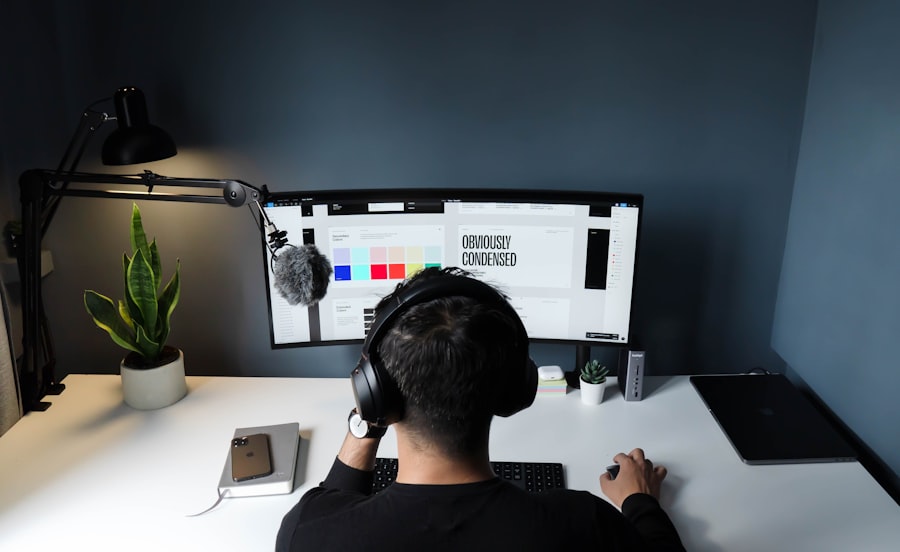
While aesthetics are important, visual design in UX/UI is about more than just making things look good. It’s about using visual elements to guide the user, communicate information effectively, and enhance the overall experience. Colour, typography, and layout all play crucial roles.
Colour Psychology: Setting the Right Tone
Colour evokes emotion and can significantly impact how a user perceives your brand and interacts with your interface. Think about the associations people have with different colours.
Brand Harmony: Consistency is Key
Ensure your brand’s colour palette is consistently applied. This builds recognition and reinforces your identity. However, don’t be afraid to use accent colours strategically to draw attention to important elements.
Accessibility: Colour for Everyone
This is critical. Ensure sufficient contrast between text and background colours to make your design readable for people with visual impairments. Tools can help you check colour contrast ratios to ensure compliance with accessibility standards.
Typography: The Unsung Hero
The fonts you choose, and how you use them, have a profound impact on readability and the overall feel of your design.
Readability First: Legible Fonts
Prioritize fonts that are easy to read, especially for longer blocks of text. Sans-serif fonts are generally considered more readable on screens. Avoid overly decorative or cramped typefaces.
Hierarchical Structure: Guiding the Eye
Use different font sizes, weights, and styles (like bold or italics) to create a clear visual hierarchy. This helps users quickly scan content and understand what’s most important. Headings should be distinct from body text, and important calls to action should stand out.
Whitespace: The Power of Nothing
Don’t underestimate the power of negative space, or whitespace. It’s not wasted space; it’s a design tool that helps to:
Reduce Clutter: Creating Breathing Room
Ample whitespace makes an interface feel cleaner and less overwhelming. It allows users to focus on individual elements without feeling bombarded.
Improve Focus: Directing Attention
Strategic use of whitespace can draw the user’s eye to specific elements, like calls to action or key information. It helps to create focal points and guide the user’s journey.
Interactivity and Feedback: The Conversation with Your User
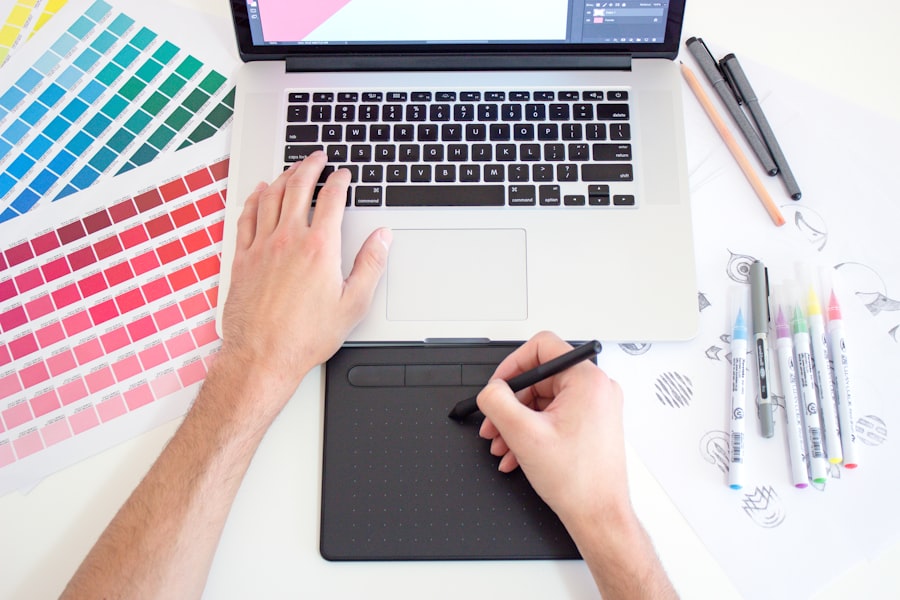
A good design feels alive. It responds to user actions and provides clear feedback, making the interaction feel like a natural, two-way conversation.
Microinteractions: The Little Details Matter
These are small, often unnoticed, moments in a product that perform a single function. Think about the animation when you “like” something, a subtle confirmation when you submit a form, or the way a button visually changes when you hover over it.
Engaging Animations: Subtle and Purposeful
Animations should enhance the user experience, not distract from it. Use them to provide feedback, guide attention, or add a touch of delight without slowing down performance or causing confusion. A well-timed animation can make an action feel more tangible and satisfying.
Clear Affordances: What Can I Do Here?
Affordances are visual cues that suggest how an element can be interacted with. A raised button, for instance, visually promises that it can be pressed. Clear affordances reduce guesswork and make interfaces feel more intuitive.
Feedback Mechanisms: Letting Users Know What’s Happening
Users need to know when their actions have been successful, are in progress, or have encountered an error.
Confirmation Messages: The “You Did It!” Moment
When a user completes a task, a clear confirmation message provides reassurance and a sense of accomplishment. This can range from a simple “Your message has been sent” to a more detailed summary.
Loading Indicators: Patience is a Virtue (When Informed)
When something is taking time, a visible loading indicator manages user expectations and prevents them from thinking the system has frozen. This could be a spinner, a progress bar, or a skeleton screen.
Error Handling: Turning Frustration into Clarity
Errors are inevitable. How you handle them makes all the difference. Instead of cryptic error codes, provide clear, concise explanations and actionable advice on how to resolve the issue.
In the ever-evolving field of design, understanding the nuances between UX and UI design is crucial for creating effective digital experiences. A recent article explores various strategies that can enhance your web development skills, which are closely tied to both UX and UI principles. For further insights, you can read more about these essential techniques in this informative piece on mastering web development. By integrating these tips, designers can significantly improve the overall user experience and interface aesthetics.
User Testing and Iteration: The Never-Ending Improvement Loop
| Metrics | UX Design | UI Design |
|---|---|---|
| User Research | Conducting interviews and surveys to understand user needs | Translating user research into visual and interactive elements |
| Wireframing | Creating low-fidelity prototypes to outline the structure | Designing the layout and structure of the interface |
| Prototyping | Building interactive prototypes for user testing | Creating interactive prototypes to demonstrate functionality |
| Usability Testing | Testing the product with real users to identify issues | Ensuring the interface is easy to use and navigate |
| Visual Design | Focusing on the overall look and feel of the product | Creating visually appealing and consistent interface elements |
Designing is rarely a one-and-done process. To truly craft engaging experiences, you need to get your designs in front of real users and be prepared to make changes based on their feedback.
Observing Real Users: The Truth Will Out
Watching actual people interact with your design is gold. You’ll see things you never would have anticipated, observe points of confusion, and discover workarounds users invent.
Usability Testing: Identifying Friction Points
This involves setting specific tasks for users and observing them as they attempt to complete them. It’s about identifying where they struggle, get stuck, or become frustrated.
A/B Testing: Optimizing Key Elements
This method involves presenting two variations of a design element (like a button colour or headline) to different groups of users to see which performs better against a specific goal (e.g., higher click-through rate).
Iterative Design: Embrace the Change
Based on your testing, you’ll need to go back and refine your design. This is the iterative part of the process. Don’t be precious about your initial ideas; be prepared to pivot and improve.
Gathering Feedback: Actively Seek Input
Encourage feedback from users, stakeholders, and team members. Create channels for them to voice their opinions and suggestions.
Prototyping: Testing Ideas Quickly
Prototyping allows you to create interactive mock-ups of your designs before committing to full development. This enables rapid testing and iteration of ideas without significant investment. Making small, incremental improvements based on user feedback is the secret sauce to creating designs that are not just functional, but truly engaging.